VLC • Windows & Mac

How to Watch IPTV on VLC

VLC is the quickest way to test an IPTV playlist on a computer. Here is how to open your M3U in VLC on Windows or Mac — and when a dedicated player is better.

IPTV M3U playlist opened in VLC media player on a laptop

Open an M3U playlist in VLC

Step 1: Open VLC

Install VLC (free) on Windows or Mac and launch it.

Step 2: Media → Open Network Stream

On Mac it is File → Open Network.

Step 3: Paste your M3U URL

Enter the Privflix playlist link we send on WhatsApp and press Play.

Step 4: Use the playlist view

Press Ctrl/Cmd + L to see the full channel list and pick channels.

VLC limits — and the better option

VLC plays streams well but has no EPG, no favourites and clunky channel switching. It is perfect for a quick test, but for daily use install a dedicated player: TiviMate or IPTV Smarters on a Firestick or Android device, or IBO on a Smart TV.

Tips

  • If a channel won’t play in VLC, the link may need re-issuing — message us.
  • Save the M3U as a file and drag it into VLC to keep the list handy.
  • VLC is great for verifying a free trial before installing a TV player.
Inside Privflix

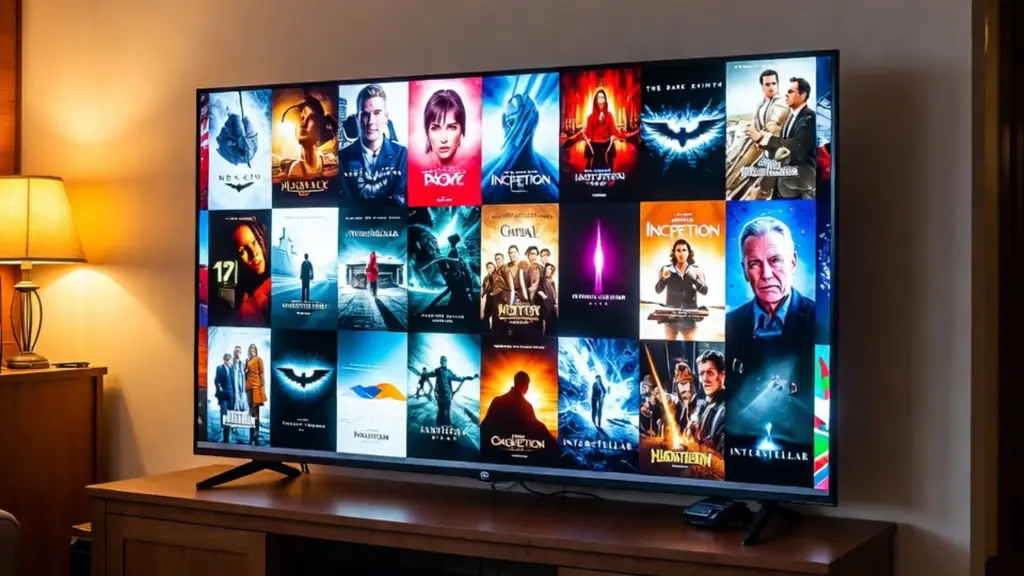
A look inside the library

Premium IPTV channels and movies in 4K on Privflix
LIVE • 4K / 8K
Thousands of channels and VOD

Frequently asked questions

Can VLC play IPTV?

Yes. Open Media → Open Network Stream and paste your M3U URL. VLC streams it, though without an EPG.

Why no TV guide in VLC?

VLC doesn’t support EPG. Use TiviMate, IPTV Smarters or IBO for a full guide and favourites.

Ready to start in minutes?

Message us on WhatsApp and we activate your IPTV subscription with a free trial — no credit card required.

Get my IPTV playlist

Related IPTV guides

Get my IPTV playlist